Description
VerificarEmails — n8n Community Node
Official n8n node for VerificarEmails.com.
Validate emails, phone numbers (HLR / MNP / Syntax), names, and postal addresses.
🔍 Finding an Official n8n Community Node
Because Verificaremails is now an official community node, you don’t need to install it manually anymore.
You can simply:
-
Open n8n in your browser.
-
In the workflow editor, click the “+” button to add a new node.
-
Use the search bar and type:
VerificarEmails -
The node will appear automatically in the list — no need to install it from Settings → Community Nodes.
-
Click on it to add it directly to your workflow.
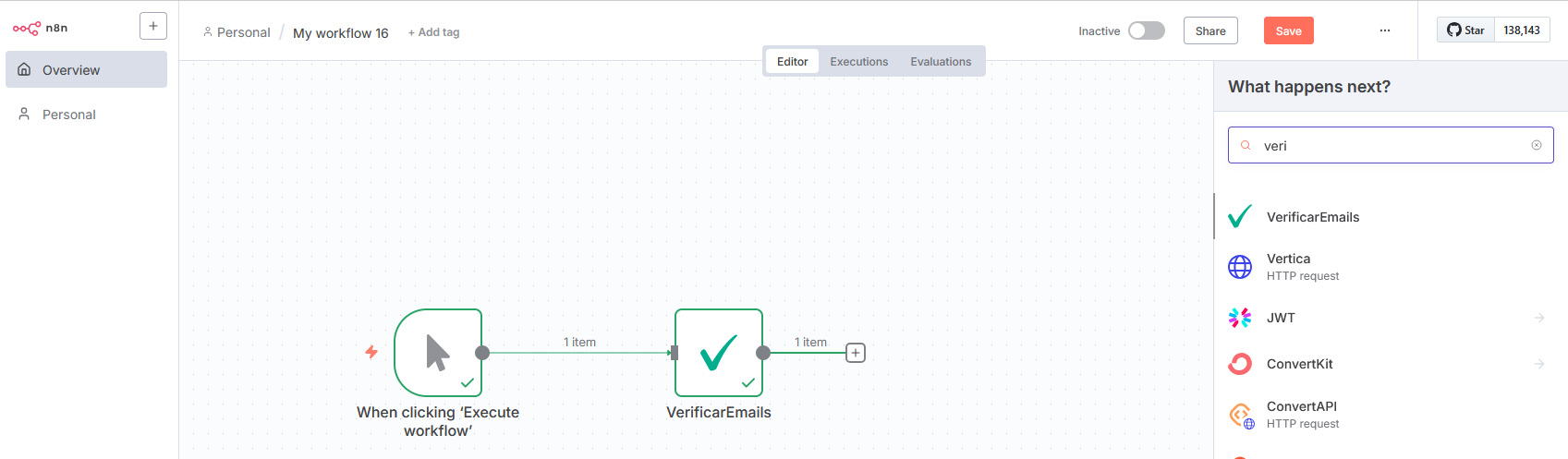
✅ Official community nodes are automatically available in the n8n node search — just like built-in nodes.
You’ll always get the latest verified version without manual updates or npm installation.
Install manually a Community Node from the n8n UI**
-
Open n8n in your browser.
Example:https://your-n8n-domain.comorhttp://localhost:5678 -
In the left sidebar, click ⚙️ Settings → Community Nodes.
-
Click the “Install a Community Node” button.
-
Enter the package name from npm — for example:
n8n-nodes-verificaremails -
Click Install and wait a few seconds.
n8n will download and install the package automatically. -
You’ll see a confirmation message, and the node will appear in your Nodes panel (search by name).
-
Restart n8n if prompted — this activates the new node.
🔄 Update an Existing Community Node
-
Go again to ⚙️ Settings → Community Nodes.
-
Find the package you want to update (for example,
n8n-nodes-verificaremails). -
If a new version is available, you’ll see an “Update” button next to it.
-
Click Update, confirm, and wait for installation to finish.
-
Restart n8n when prompted.
✅ After restart, the latest version of the node is active, and your existing workflows will keep working.
You can check the version number under Settings → Community Nodes → Installed packages.
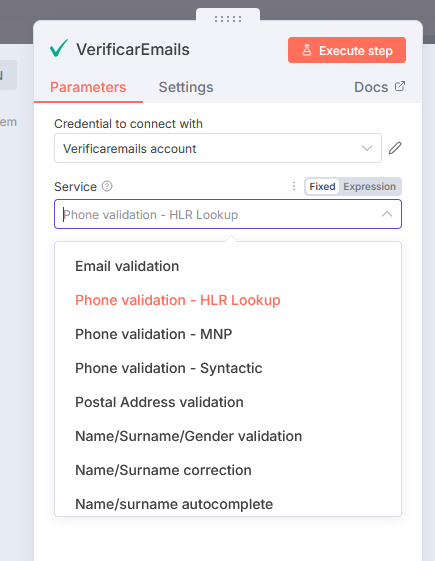
Supported Services
- Email validation
- Phone validation — HLR Lookup
- Phone validation — MNP
- Phone validation — Syntax
- Postal address validation
- Name / Surname / Gender validation
- Name / Surname correction (JSON term)
- Name / Surname autocomplete (JSON term)
For Name correction and Name autocomplete, the node automatically builds the required JSON and encodes it into the
termparameter.
Development
npm install
npm run build
Credentials
To use the VerificarEmails API, you must first create an account.
Once registered, you can activate the services you need:
- Email verification
- Phone verification
- Postal address verification
- Name, surname, and gender detection
When creating your account, select your preferred language. All API messages will use this language setting.

After activating your account, choose the service you want to use. You can navigate between services using the top-left logo or the banners.

Next, go to the API section of the chosen service.

Click on the "+ Create new API" button (top right). Give the API a name and optionally set a credit limit.
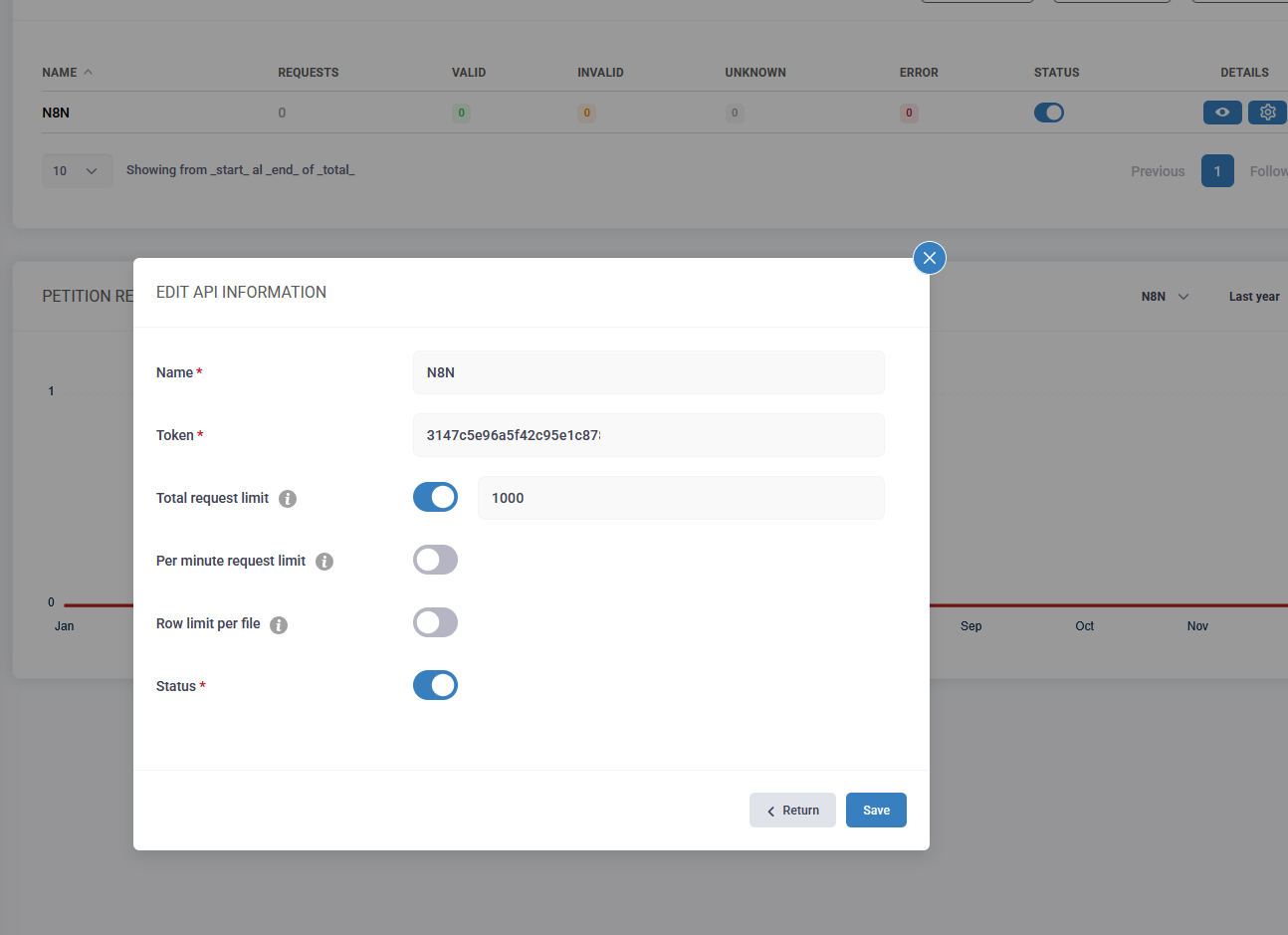
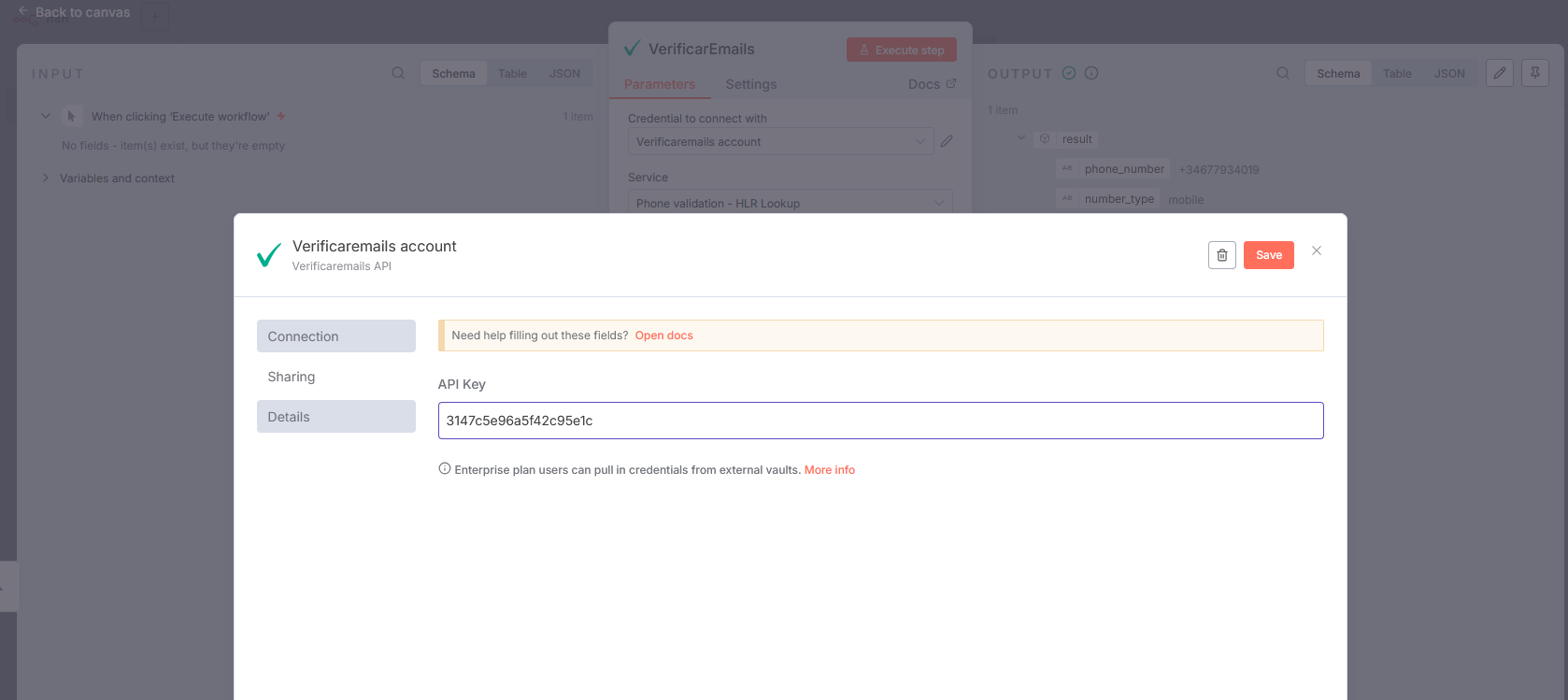
Once saved, an API token will be generated. This token must be added to the n8n credentials for the VerificarEmails node.
Using the Node in n8n
In n8n, search for VerificarEmails in the Community Nodes section and add it to your workflow.
If you plan to use multiple validation services, it’s recommended to use the same API key for all of them.
To do this, open the gear icon in the credentials, select the active token, and reuse it across services.
When configuring the node, select the specific service you want to use (Email, Phone, Name/Surname, Postal address, etc.).
Each service not only validates the data but also provides additional details. Check the Result Guide section in our documentation to better understand and use the results.
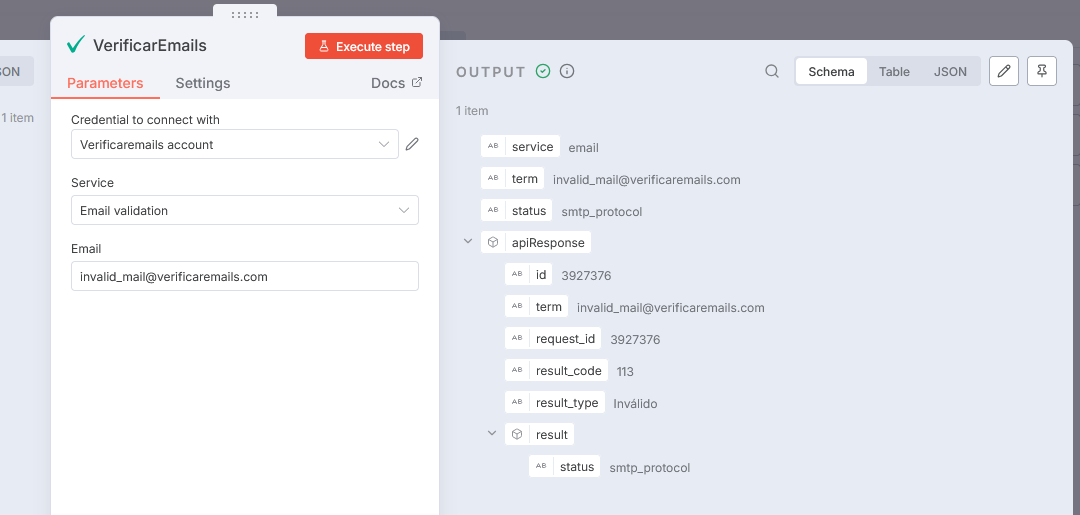
The API also includes error handling for incorrect queries. Errors are rare, but we recommend implementing controls.
Error messages will always be returned in the account’s selected language.
Documentation
- Email Verification API
- Phone Verification API
- Name / Surname / Gender API
- Postal Address API
- Swagger Quick Start Guide
If you need assistance setting up your environment, use the support chat (bottom right widget) on our dashboard.
License
MIT © Skeyon Lab S.L.